


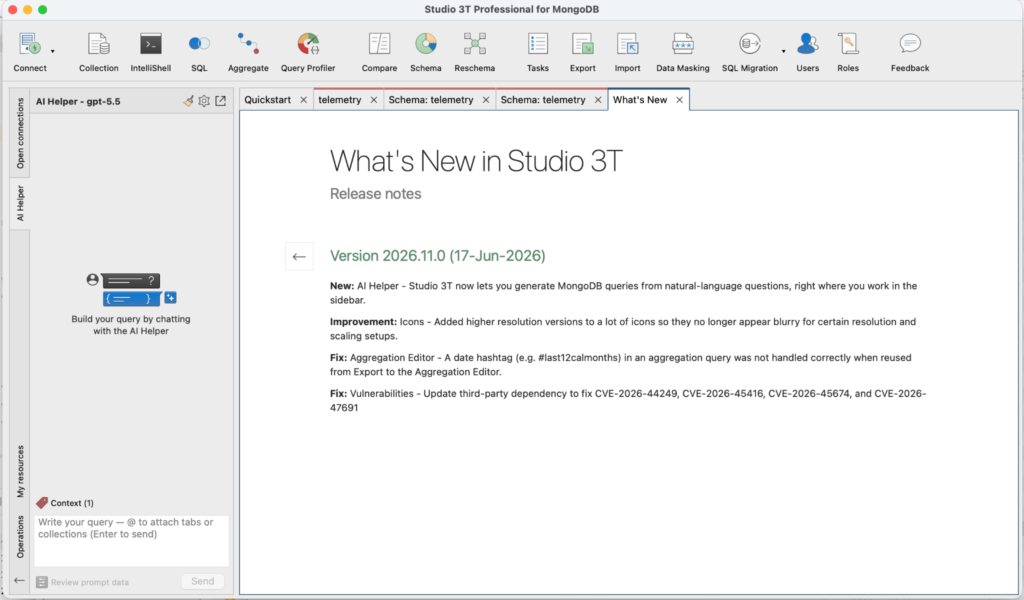
Introducing Global AI Helper, a persistent, context-aware MongoDB AI assistant located in the application’s global sidebar. Previously, the software’s AI capabilities functioned as separate utilities, requiring users to manually bridge the gap between different schemas, queries, and connections. Available now in Studio 3T Desktop IDE 2026.11.0, the Global AI Helper unifies these tools into a single conversational interface.
This update rebuilds the assistant to align with modern AI advancements while maintaining core features like schema analysis and performance diagnostics. It also introduces new features designed to improve daily database operations.
1. Limitations of the previous setup
While the underlying tools were functional, the previous setup presented usability challenges:
- Tab-isolated workspace: The previous AI was restricted to individual tabs, such as Collection View, IntelliShell, or the Aggregation Editor, and lacked visibility into the broader workspace. Users had to re-prompt the assistant when switching between views.
- Isolated error handling: Failed database operations produced complex error dialogs. Users had to manually copy errors or diagnose schema, connection, or syntax issues themselves.
2. Introducing the Global AI Helper
The Global AI Helper integrates the original eleven AI tools rather than replacing them. Located permanently in the global sidebar, it acts as a proactive database analyst. The assistant automatically tracks user navigation, combines multiple schemas, securely processes application data, and visually maps database health within the chat interface.
3. Capabilities of AI Helper tools
As a MongoDB AI assistant, the helper connects various specialized database analysis and interaction tools into a unified conversational workflow. These features also function as MCP tools and include the following capabilities:
- list_connections: Lists all saved MongoDB connections in the current environment.
- connect: Activates a specific database connection.
- list_databases: Displays all databases linked to the active connection.
- list_collections: Retrieves metadata and a complete list of collections within a selected database.
- find_documents: Safely runs read-only queries with data truncation and integrated timeouts.
- analyze_schema: Maps data types and field presence to inspect a collection’s structure.
- get_collection_stats: Fetches index allocations, average object sizes, total document counts, and storage sizes.
- list_indexes: Provides normalized configuration data for all indexes assigned to a collection.
- explain_query: Audits query performance by executing explain(“executionStats”) to reveal index usage and execution stages.
- assess_collection_health: Scans a collection’s diagnostics to provide optimization recommendations.
3.1. Workspace Connection via list_connected_tabs
The list_connected_tabs tool checks open Studio 3T tabs that contain active database contexts. It extracts metadata such as the tabId, tabName, tabType (e.g., Aggregation Editor, IntelliShell, Collection Viewer), connectionId, connectionName, databaseName, and collectionName. This mechanism helps the system resolve ambiguous contexts by identifying which data environments the user is currently reviewing or modifying.
3.2. Using the tools
Users can interact with the helper by typing natural language requests in the global sidebar. Because the AI is context-aware, it detects the active tab and environment automatically, eliminating the need to specify the collection path manually.
For cross-collection operations or complex queries, typing ‘@’ opens the Menu Context Manager. This allows users to pin active tabs, databases, or collections to the conversation, giving the assistant the necessary structural context. The AI invokes the relevant background tools and presents the executable code or data directly in the chat.
Example prompts: The assistant accepts conversational prompts such as:
- Check the health of a collection and suggest missing indexes.
- Retrieve the storage size and average document size for a collection.
- Visualize the frequency distribution of specific fields.
- Compare schemas to identify potential inconsistencies.
- List the currently configured indexes for a collection.
- Identify active collections in open tabs.
Other functions:
- Performance checks: The AI can diagnose slow queries, examine execution methods, and display metrics like run time and index warnings.
- Data structure snapshots: Users can ask the helper to sample a default of 1,000 documents (first, last, or random sets) to review data structure.
- Health assessments: The AI evaluates schemas, indexes, and stats to provide a health score and actionable advice, such as adding indexes or fixing bloated collections.
- Visualizations: The AI can scan data structures and instantly generate pie, line, or bar charts directly in the chat to display field relationships, data types, or trends.
4. Inside the Global AI Helper
4.1. Interactive query generation & smart code routing
The assistant converts natural language into MongoDB syntax. Users can securely link the helper to Large Language Models from OpenAI, Azure AI, or Anthropic’s Claude. It identifies the last clicked tab as the “active tab,” which becomes the primary target for operations.
How it works:
- Targeted code application: The AI routes generated code directly to the active tab, whether it is the IntelliShell, Collection Viewer, or Aggregation Editor.
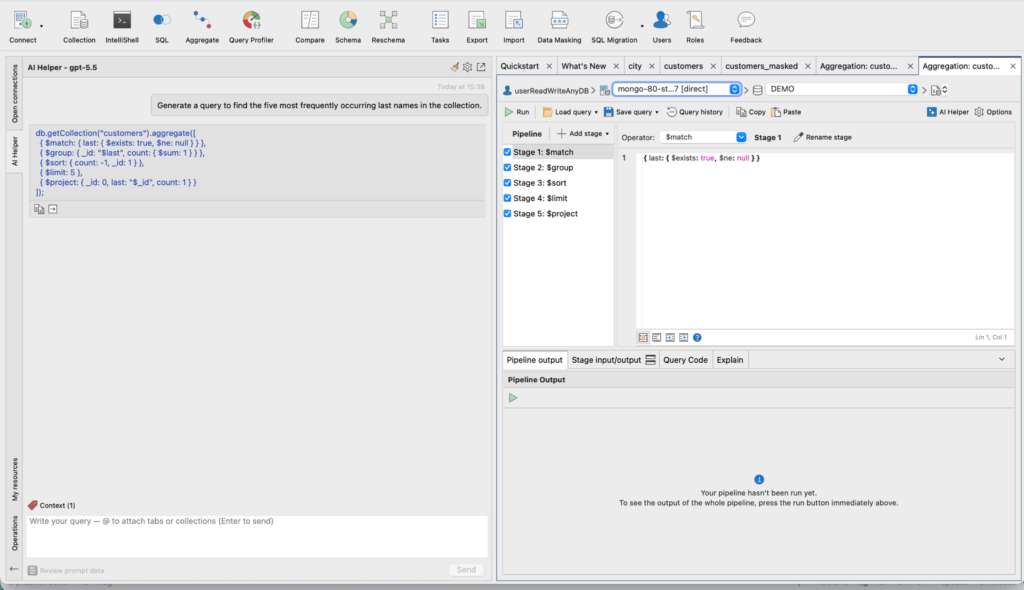
- Smart classification: The assistant automatically categorizes its own output as a shell script, aggregation pipeline, or standard search query.
- One-click injection: Buttons like “Change query” or “Change pipeline” allow users to instantly inject code into the active tab.
- Dynamic tab management: If the current tab does not support the generated code type, the system automatically opens a compatible new tab.
- Built-in safety: To prevent data loss, the system checks the target tab for active bookmarks or unsaved changes before applying code.
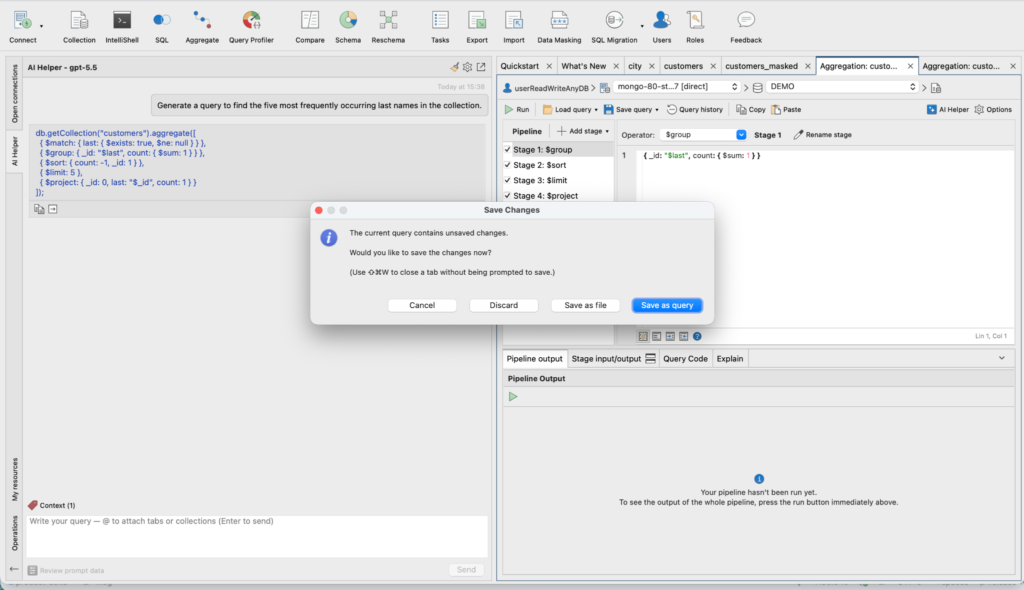
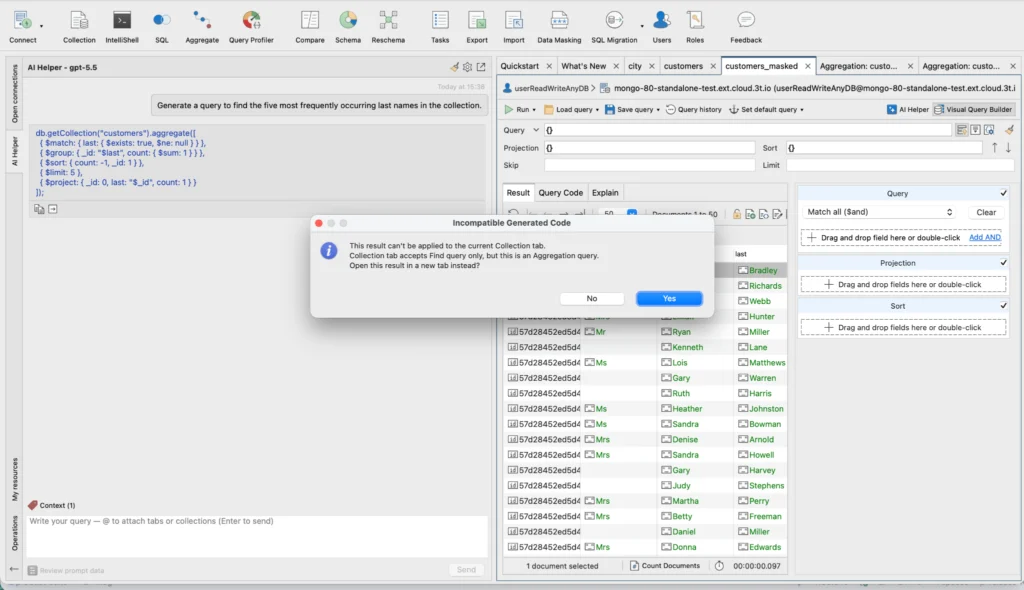
- Adaptive workspace tracking: The system updates its context immediately when a user clicks a new tab, ensuring the AI aligns with the currently viewed data.
4.2. Multi-collection schemas and the @ Menu Context Manager
The Context window simplifies managing complex data across multiple collections:
- The @ Search Tool: Typing ‘@’ allows users to search for and select connections, collections, or databases.
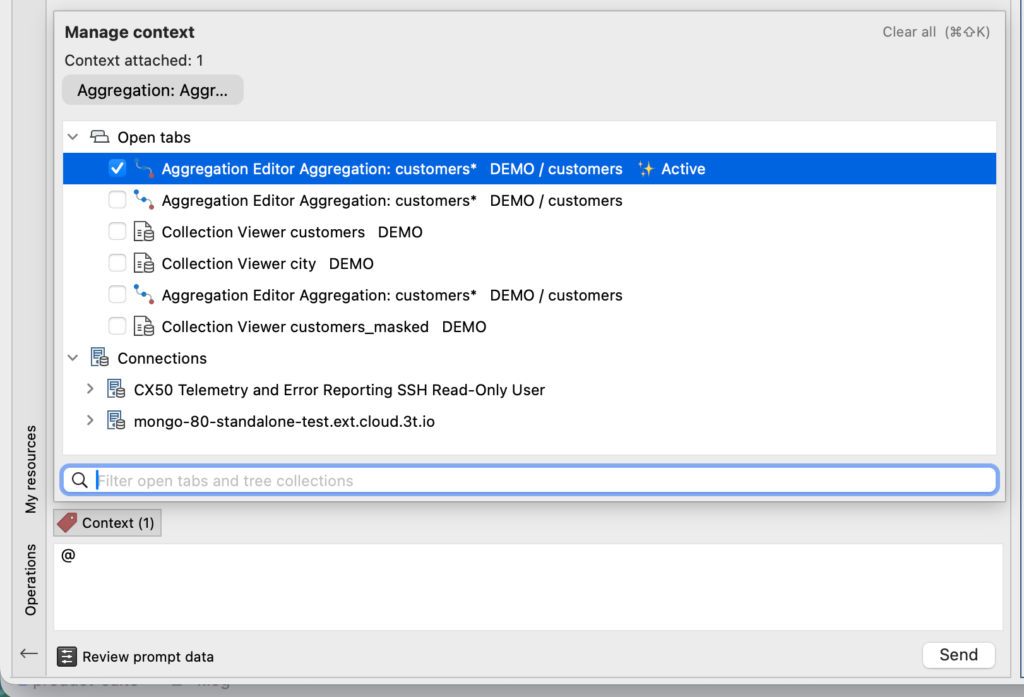
- Pin your data: Users can link up to 10 data sources to the chat, including data from open tabs or saved collections.
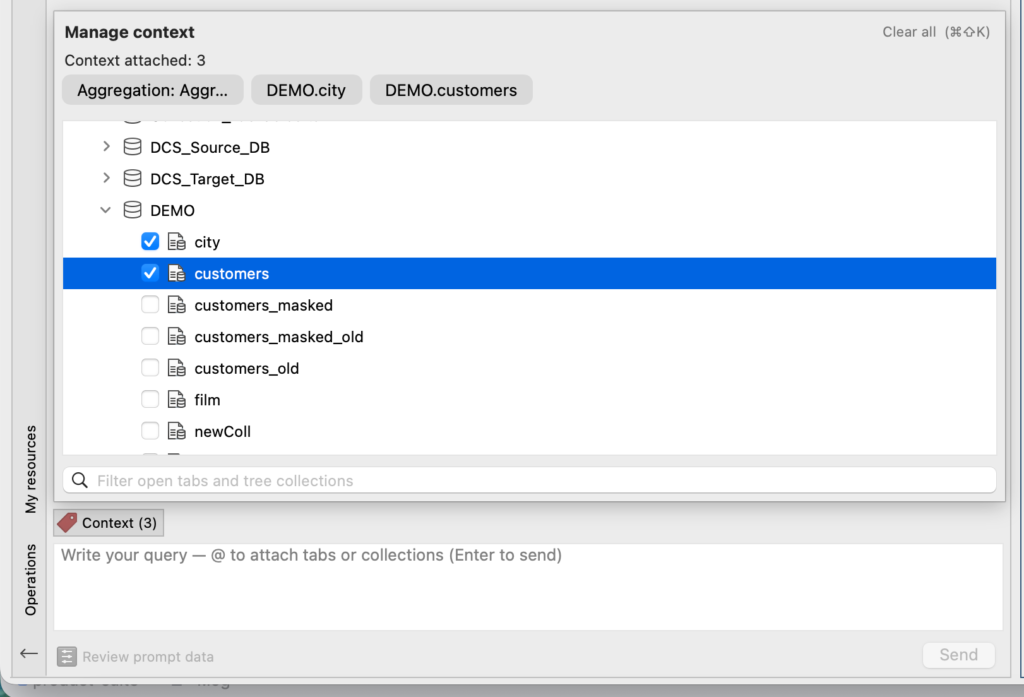
- Better queries: Because the AI understands the relationships between the pinned data, it can write accurate code for complex database joins.
4.3. Deep schema scanning
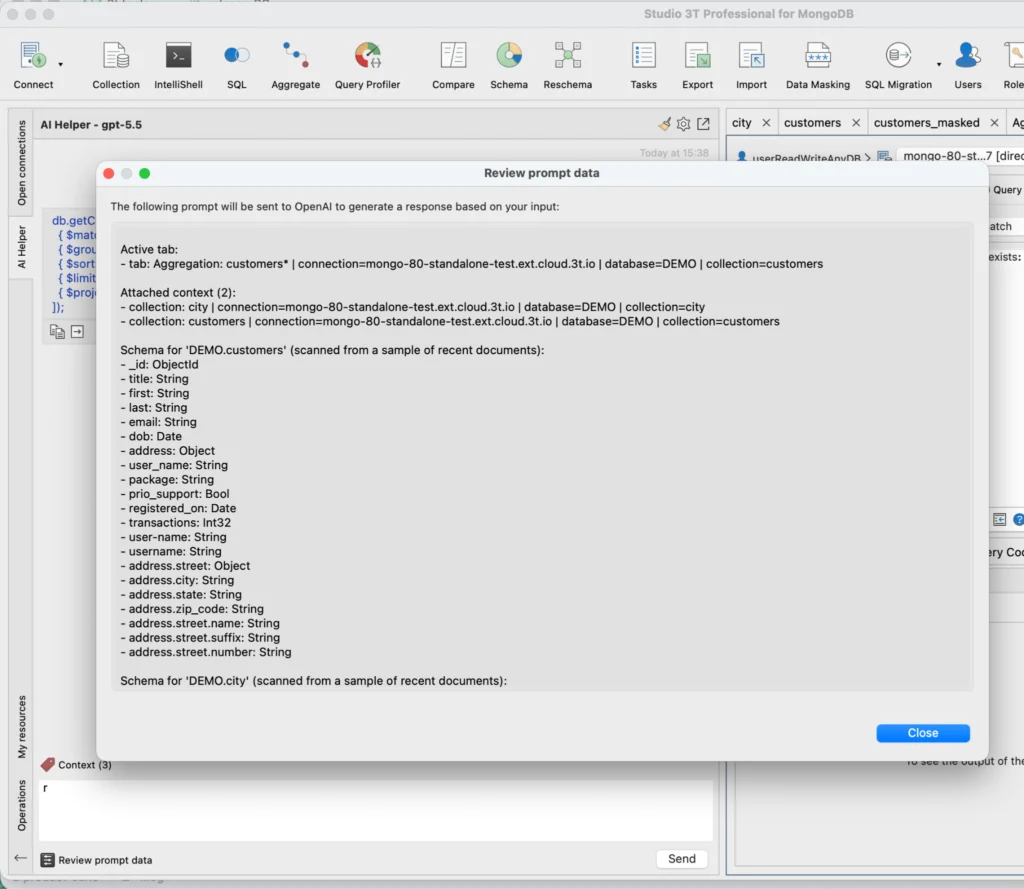
Attaching a collection triggers an autonomous background scan designed to maintain accuracy without overloading system tokens:
- Intelligent sampling: The scanner safely maps up to 120 fields per collection, with a limit of 360 fields total across the conversation.
- Nested structure traversal: It recursively explores sub-documents and deep arrays, gracefully truncating arrays at 10 elements to keep payload sizes small.
4.4. Automated workspace tracking
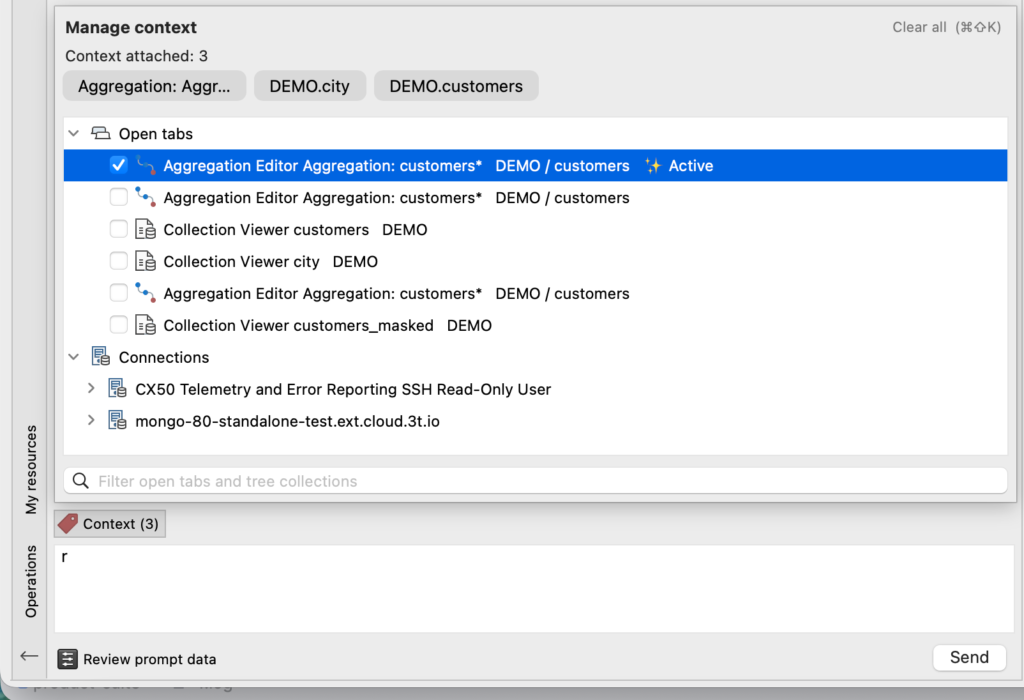
The assistant monitors user movement from the global sidebar. It detects tab shifts and automatically aligns the AI’s internal target with the active view, meaning users do not need to re-verify their database path manually. The user can see the Active tab in the Manage Context dialog; it is always included in the context.
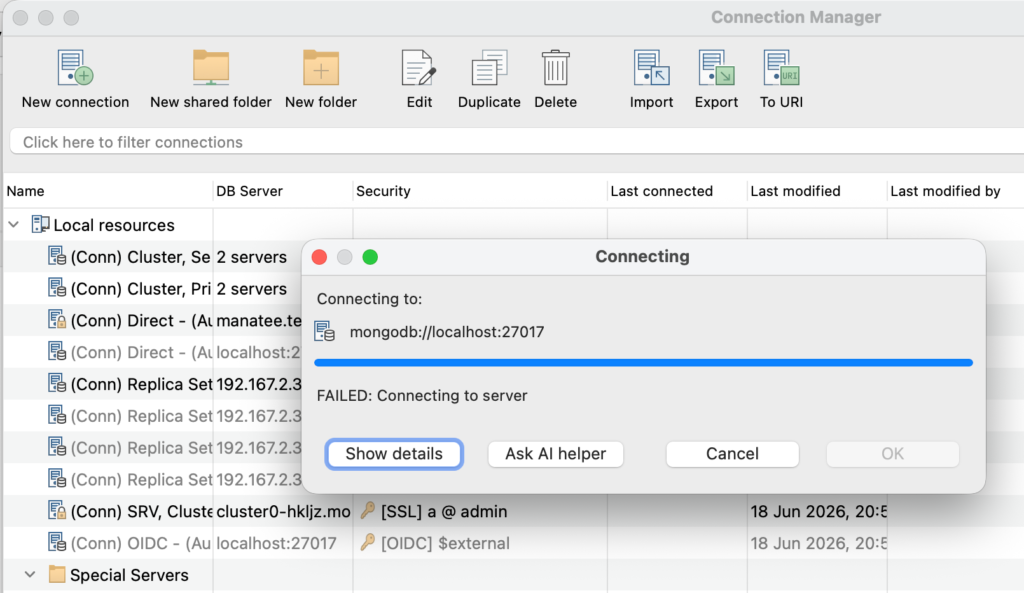
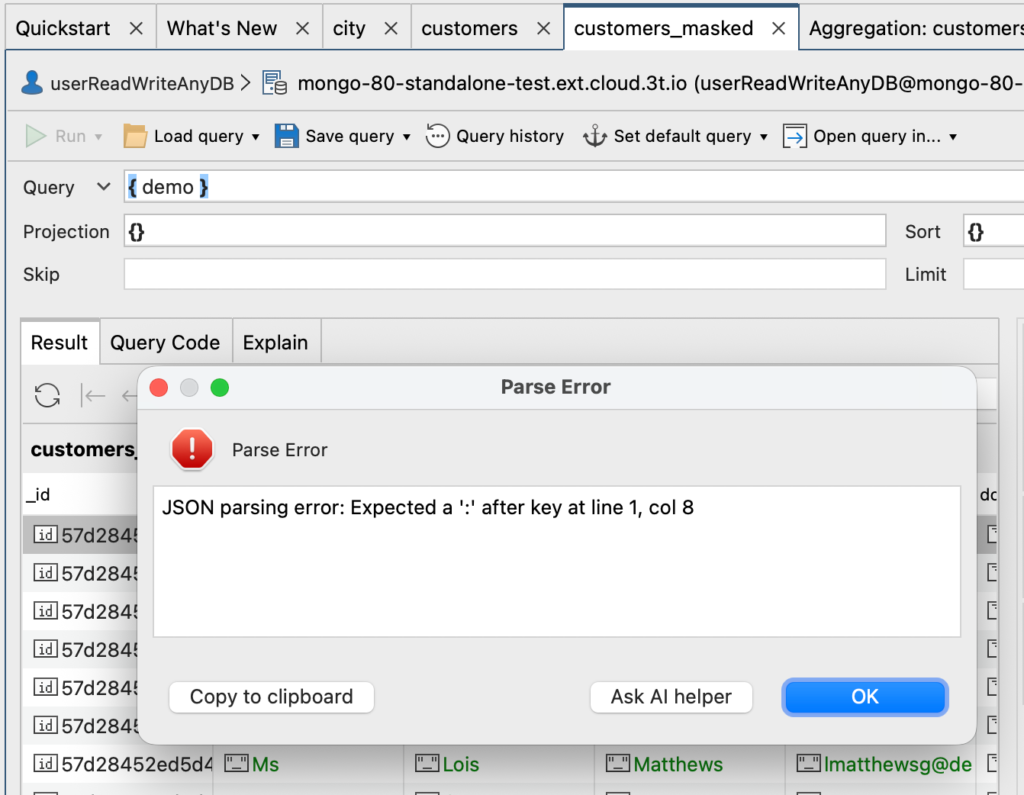
4.5. Context-aware error assistance
The helper offers direct troubleshooting support for two main error categories:
- Connection errors: Diagnoses network configurations or “no-connection” failures that prevent database access.
- General errors: Resolves syntax errors in IntelliShell, task operation failures, or “collection-not-found” alerts.
Instead of interpreting error logs manually, users can click the “Ask AI helper” button on task failure alerts or native error dialogs. This instantly opens the sidebar, populates the chat with the exact error footprint, and provides plain-language instructions to fix the problem.
4.6. Edition & licensing availability
The updated AI capabilities are available across the following Studio 3T license tiers:
- Professional license: Grants access to diagnostic suites and advanced query tools for multiple collections, alongside existing tools like Schema Explorer and SQL translation.
- Ultimate license: Allows enterprise users to integrate chart generation, automated health workflows, and AI diagnostics into their database management setup.
This update ensures that both Ultimate and Professional users have equal access to these AI features.
5. Conclusion
5.1. Benefits for your daily workflow
The Global AI Helper is designed to reduce tedious tasks and provide immediate advantages for data management:
- Effortless joins: The AI can write complex $lookup logic when multiple sources are pinned using the @ Menu Context Manager.
- Zero lost context: Users do not need to re-type prompts or re-explain schemas because the AI tracks tab movements automatically.
- Intelligent code routing: The assistant injects the correct MongoDB syntax directly into the active tab based on plain-English requests.
- Instant visualizations: The AI generates pie, line, or bar charts directly within the chat window.
- Rapid diagnostics: Users can ask natural-language questions to receive immediate answers about collection health and query performance.
- Instant error clarity: The “Ask AI helper” button on error dialogs provides exact steps and plain-language explanations to resolve issues.
Ultimately, the Global AI Helper serves as a database analyst and MongoDB AI assistant, intended to make MongoDB development faster and simpler.


