


Whether you’re working on your own projects or managing large databases as a professional, Studio 3T helps you work faster, reduce errors, and improve your productivity. It’s a solution that’s all in one place, bringing you clarity and control over your NoSQL data.
Got Studio 3T downloaded and installed on your machine? Then let’s get started.
Watch the video below to learn how to connect to MongoDB, view document data, build queries, and more:
Connect to MongoDB
You can create unlimited connections to MongoDB with Studio 3T, unless you’re using Studio 3T Community Edition, where you can create up to three connections.
Have your connection details ready
Whether your MongoDB deployment is hosted on-premise or through a cloud hosting service, the quickest way to connect to your database is to have a connection string ready.
mongodb://[username:password@]host1[:port1][,host2[:port2],…[,hostN[:portN]]][/[database][?options]]
The standard connection string or URI format
Cloud hosting services like MongoDB Atlas, Compose, mLab, ObjectRocket, and ScaleGrid readily provide this connection string, so all you need to do is make a few modifications, like insert SSH and/or SSL details, and paste it into Studio 3T.
Alternatively, you can also save the connection string as a URI file.
Create a new connection
Follow these steps to enter your connection string or upload your URI file in the Connection Manager.
Take a tour
Now that you’ve connected Studio 3T to MongoDB, you can start exploring your data.
Global toolbar

The global toolbar is always available no matter how you’re working with your data, providing you one-click access to Studio 3T’s features.
Connection Tree
On the left-hand side, you’ll always find the Connection Tree, which shows all your open MongoDB connections and their respective databases and collections.
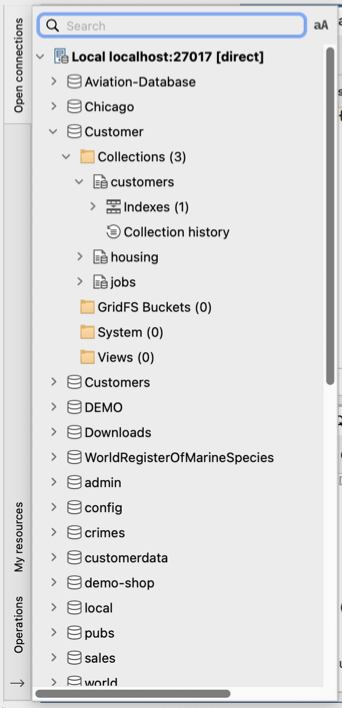
Avoid database mixups by color-coding your databases and collections.
If you need more space to work with your data, hide the connection tree by clicking the arrow in the lower left of the Studio 3T application.
View and explore data
Double-click on any collection in the Connection Tree to open a Collection Tab.
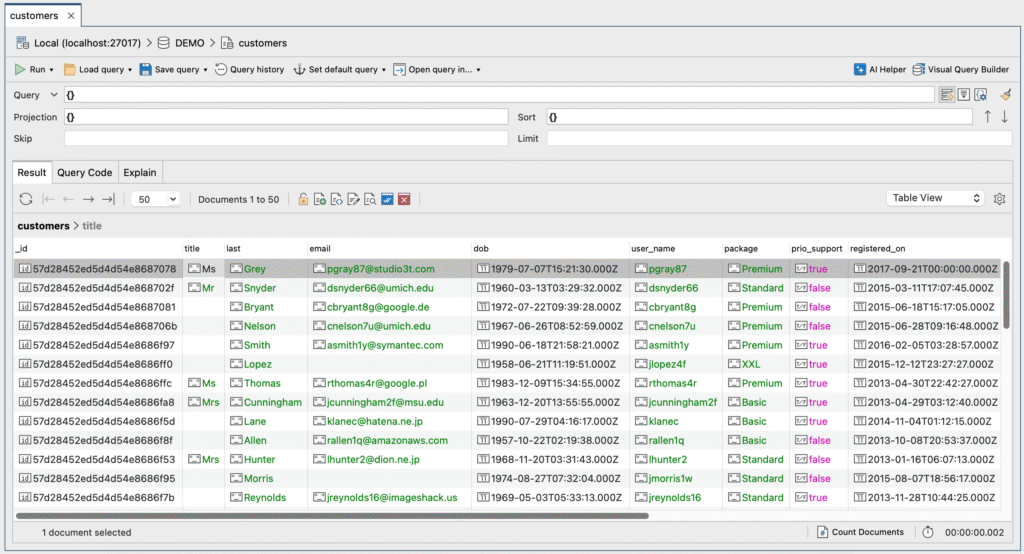
The Collection Tab is the starting point for viewing and exploring MongoDB collections. Here you can view, edit, and query your collection data, and access other features.
Studio 3T lets you view your data in three ways.
Table View
View your data in a familiar spreadsheet format and enjoy features unique to Studio 3T like showing embedded fields, stepping into array-valued columns, showing/hiding columns, and more.
Tree View
Show your data in hierarchies that you can expand or collapse as needed.
JSON View
Go old school and view your collection as JSON documents, complemented by a built-in JSON editor that validates your syntax as you go.
Build your query
With Studio 3T, anyone can build a MongoDB query.
It doesn’t matter if you don’t know the MongoDB query language, use SQL, or write JSON documents like a pro – there’s a feature that’s right for you.
Drag-and-drop fields
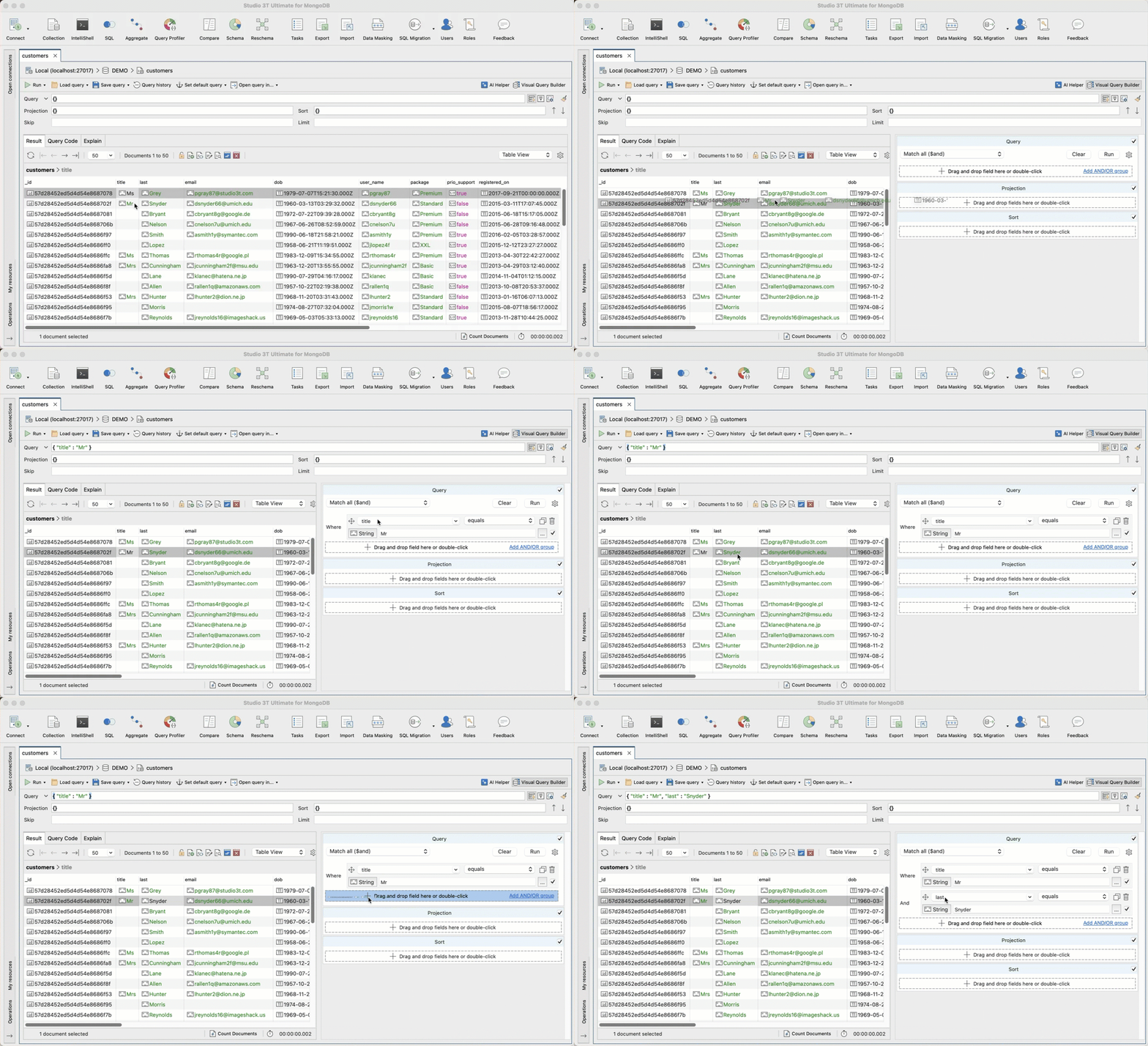
Even if you have no knowledge of the MongoDB syntax, you can still get some serious querying done with the Visual Query Builder.
Simply drag and drop the fields you want to query into the builder and let Studio 3T do the work.
Query with SQL
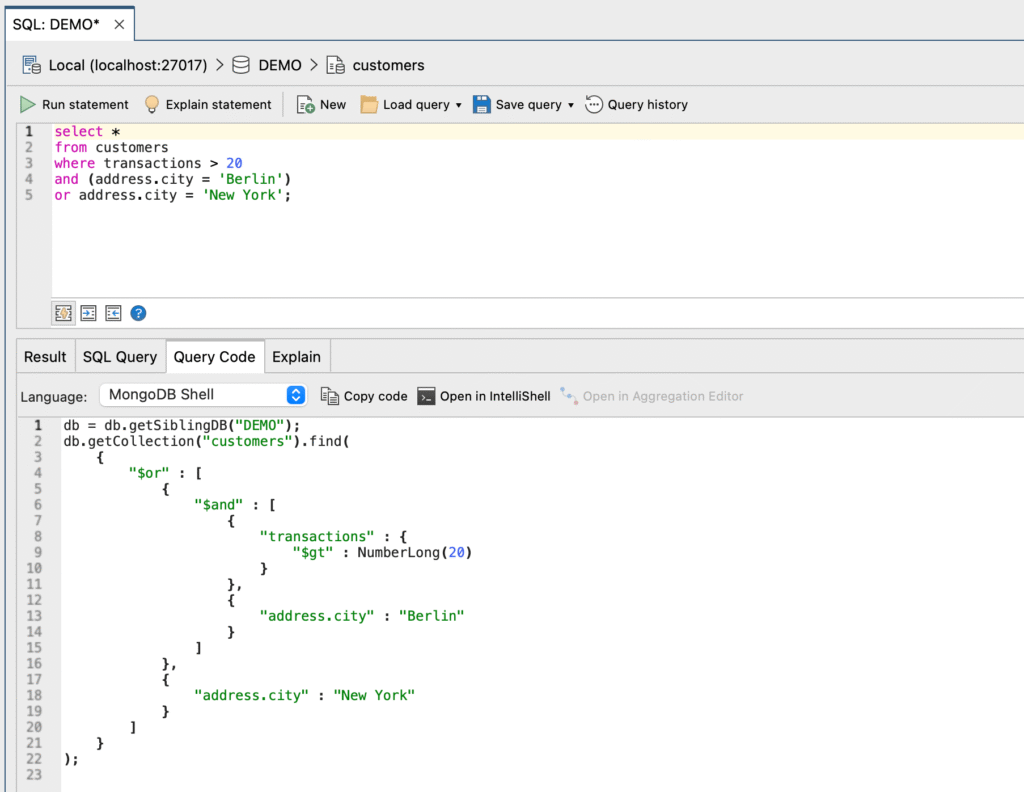
If you’re proficient with SQL but new to MongoDB, you can be just as productive with your SQL querying skills.
Through SQL Query, you can write SQL statements to query MongoDB, including joins and learn how your SQL queries translate to the MongoDB Shell language.
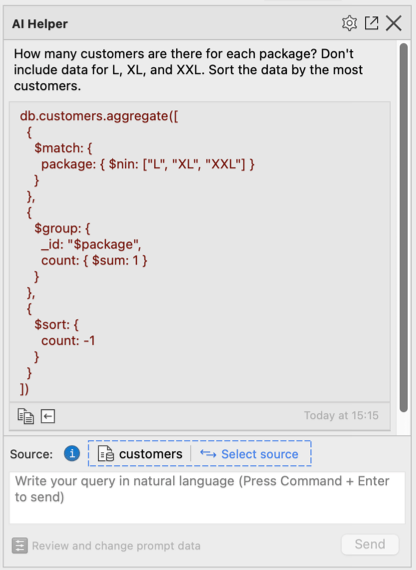
Ask in natural language
If you’re a non-technical user or you want to quickly get started writing a query, AI Helper lets you ask questions about your data in your native language. Using your AI model, it turns your questions into MongoDB queries, including aggregation pipelines.
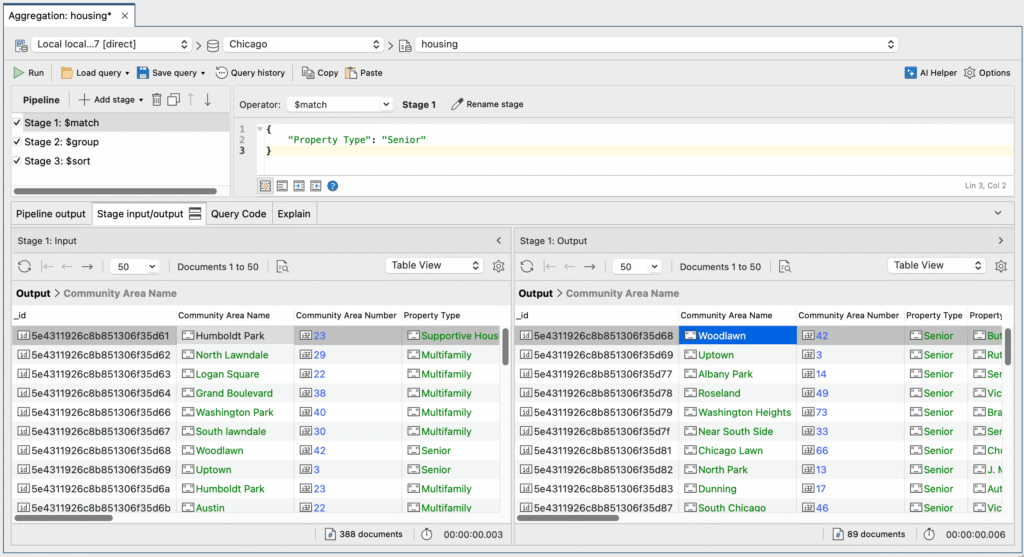
Build aggregation pipelines
The Aggregation Editor lets you check the accuracy of inputs and outputs one stage at a time, a better way of building of building aggregation pipelines which even those with expert skill levels in MongoDB will appreciate.
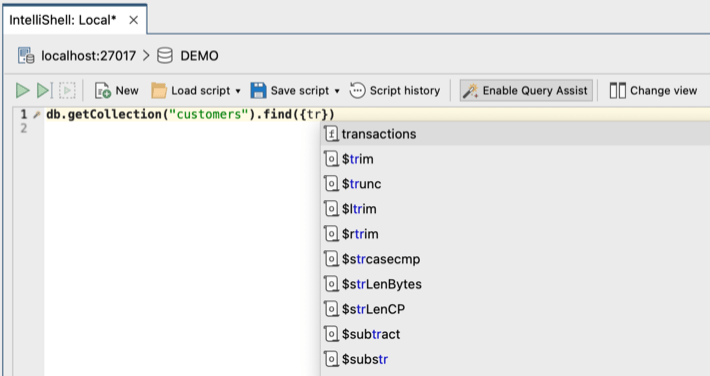
Use the built-in MongoDB Shell
Those familiar with the MongoDB Shell will feel right at home with IntelliShell, letting you write code with smart autocompletion and real-time error highlighting.
Generate query code
With a single-click, Query Code lets you translate queries or aggregations into code you can use in your applications, including JavaScript, Java, C#, Python, PHP, and Ruby.
Fix data issues
Troubleshoot database bottlenecks, optimize long running queries, and synchronize your data.
Profile databases
Tune performance and fix slow queries with Query Profiler. Use real-time profiling to get comprehensive diagnostics including execution times, frequency, and query code.
Optimize query performance
Keep applications running smoothly with Index Manager and reduce query execution time. Create, adjust, and test indexes without downtime.
Compare and sync collections
Compare collections across environments and sync differences like missing values or mismatched fields with Data Compare and Sync.
Choose between light or dark theme
Choose between dark theme or the default light theme by going to Preferences > Appearance and behavior > Appearance selecting Dark as the theme.
This article was originally published by Kathryn Vargas and has since been updated.


